
iPhone & iPad
Safari
- Open Odd$ Ledger in Safari.
- Tap the Share button (the square with an arrow).
- Scroll down and tap Add to Home Screen, then Add.
- Open it from the new Odd$ Ledger icon from now on.
Odd$ Ledger™ by Favorable Odd$™ · Phone & computer app
Log what you spend and what comes in, every day. See your week or month at a glance, set a budget for each category, and know what's left over. Odd$ Ledger is free, needs no account, works offline, and keeps every entry on your own device.
Version 1.3.1 · iPhone, iPad, Android, Mac, Windows and any modern browser · How your data is kept private · Free under the Odd$ Tools License
A working drawing of your money
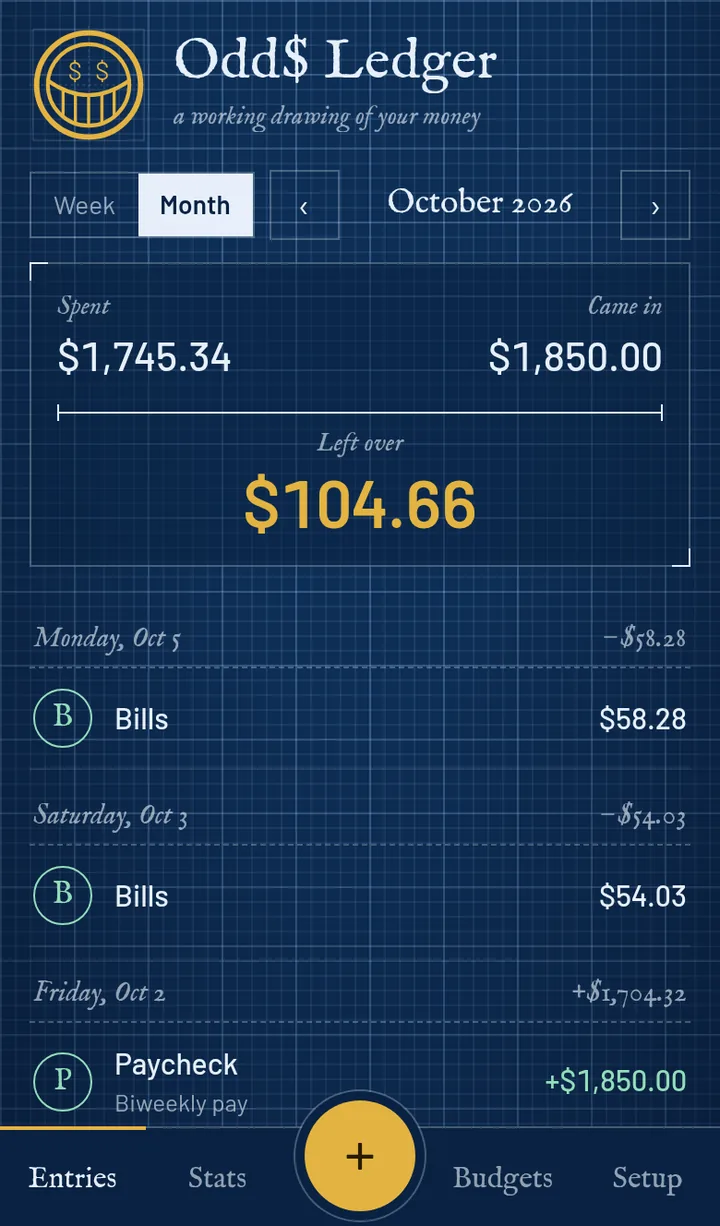
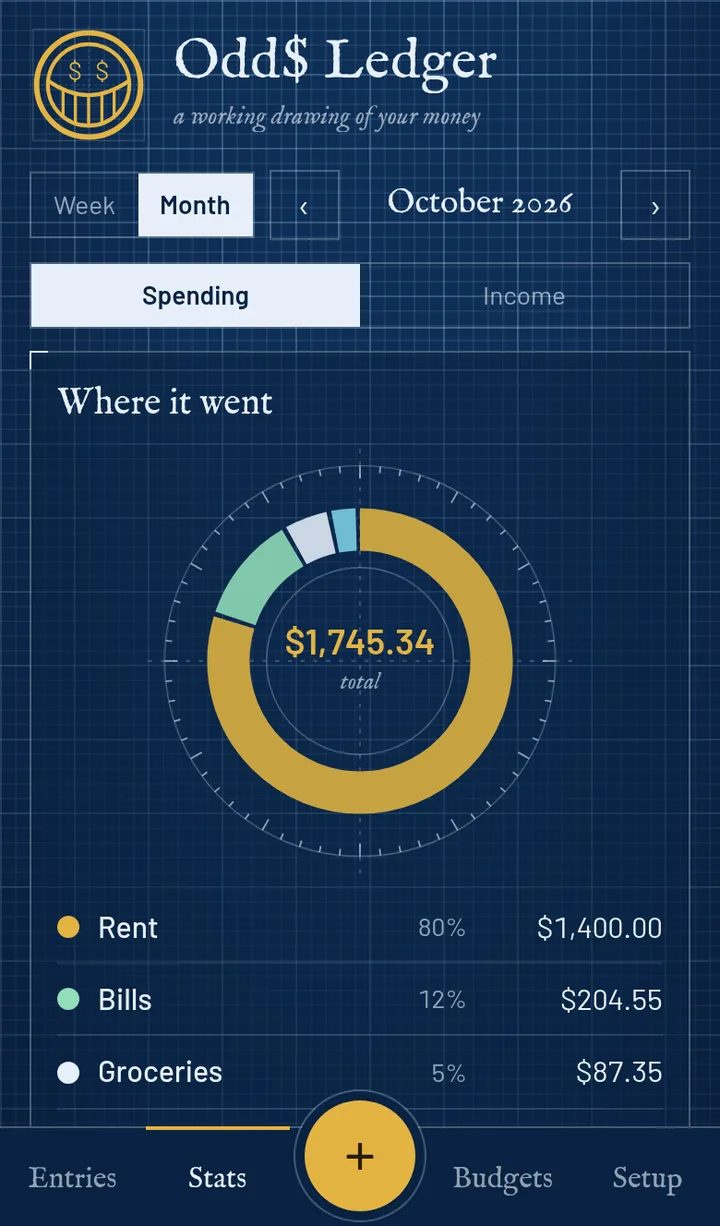
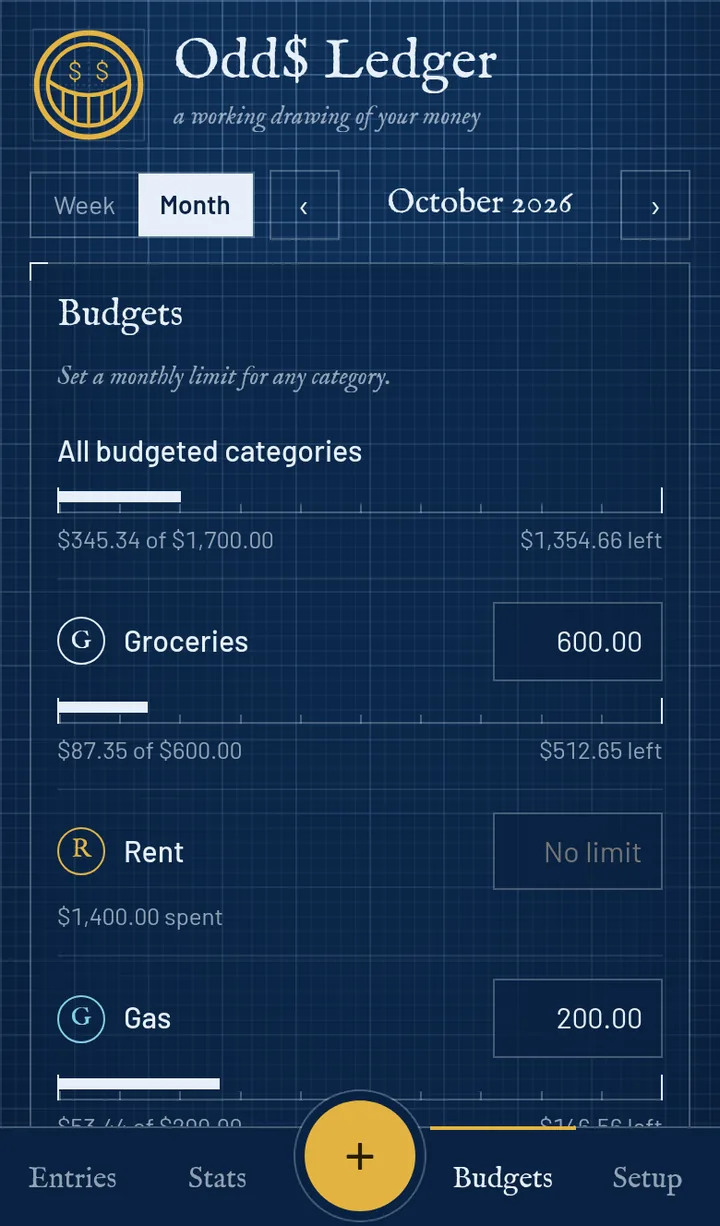
Screens show sample data.
No App Store needed
It installs from your browser in a few taps, opens full screen from its own icon, and works without a connection.
iPhone & iPad
Android
Mac
Windows PC
iPhone tip: add it to your home screen before you start logging, and use it from the icon. On iPhone the home screen app and a Safari tab keep separate storage, so entries made in one don't appear in the other.
Mac tip: use the Dock app rather than a Safari tab. Safari can clear a website's saved data if you go a while without opening it, which would erase a ledger kept in a tab; the Dock app doesn't have that problem. Like on iPhone, the Dock app and Safari tabs keep separate entries.
What it does
Tap the gold + button, type the amount, pick a category and save. Add a note if you like. Spending and income are logged by date.
Switch between Week and Month to see what you spent, what came in, and what's left over or how far over you are. Step back through earlier weeks and months.
Set a monthly limit for groceries, eating out, gas or anything else. A ruler shows how much is used and turns gold, then red, as you get close and go over. Week view shows each budget's weekly share.
A ring chart breaks spending or income down by category, with a six-week or six-month trend underneath.
Rent, a paycheck, a subscription: add it once, choose how often it repeats, and it is added for you each time it comes due. Pause or delete it any time.
Add your cards and loans to see your debt-free month, the interest you will pay and what an extra payment each month would save. Pick highest interest first or smallest balance first, and log payments as you go.
Rename, recolor, add or delete categories. Deleting one moves its entries to "Other" so nothing is lost.
Save a backup file to Files, iCloud Drive or email, restore it on any device, or export a CSV for Excel, Numbers or Google Sheets.
Privacy
Odd$ Ledger has no account, no server copy of your data, no bank connection and no analytics. Every entry is stored only in the app's storage on your device, and the app makes no network requests with your data. Its fonts and code are served from favorableodds.io and saved on your phone for offline use, so it doesn't contact any other company either.
Because nothing is stored with us, we can't recover lost entries. That is why the app reminds you to save a backup file, by default once a week.
Your entries can be lost if you delete the home screen icon, clear website data in your phone's settings, or lose or replace your phone without a backup. On a Mac, a ledger kept in a Safari tab (instead of the Dock app) can also be cleared by Safari if you go a while without opening it.
To protect them: open Setup, tap Save backup file, and keep the file somewhere safe such as iCloud Drive. To restore, tap Restore from backup and choose the file.
Questions
Yes. Odd$ Ledger is free with no account, no ads and no in-app purchases.
Yes. Open Odd$ Ledger in Safari, tap the Share button, choose Add to Home Screen, then tap Add. It opens full screen from its own icon, works offline, and keeps your entries on your phone.
No. It is a web app that you add from your browser, so there is nothing to download from the App Store and it updates itself when you open it with a connection.
Yes. After you have opened it once with a connection, it opens and works without internet, including on a plane or with no signal.
Only on your device, in the app's own storage. Odd$ Ledger has no account, no server copy and no analytics, so Favorable Odds never receives or sees your entries.
Yes, if the app's storage is removed: deleting the home screen icon, clearing website data in Settings, or losing or replacing your phone. On a Mac, Safari can also clear a ledger kept in a Safari tab if you go a while without opening it, so use the Dock app. Save a backup file regularly from Setup. The app reminds you if it has been more than a month since your last backup, and it keeps automatic copies on the device (Setup, Earlier versions): one every 2 minutes while you make changes, one a day, and one before any restore or erase. You can also tap Save a copy now. These copies protect against mistakes on the phone; only a backup file survives losing the phone.
Usually they are in a different week or month. The app opens on today's period, so entries dated in the future or the past are one tap away: the empty screen shows a Go to button that takes you to the nearest period with entries. If you still don't see them, check that you are in the same place you logged them (the Home Screen app and a Safari tab keep separate entries), then look in Setup under Earlier versions.
On iPhone, the home screen app and a Safari tab keep separate storage. Add Odd$ Ledger to your home screen first and log your entries there. If you already started in Safari, save a backup file there and restore it in the home screen app.
In Setup, tap Save backup file and save it to Files, iCloud Drive or email it to yourself. On the new phone, add Odd$ Ledger to the home screen, open Setup, tap Restore from backup and choose that file. If the app already has entries, you can combine them with the backup or replace them, and it opens on the restored entries.
Yes. Log each purchase and paycheck with its date, then switch between Week and Month to see what you spent, what came in and what is left over. Set a monthly budget per category; Week view shows each budget's weekly share.
No, by design. You log entries yourself, so no bank login or account access is ever needed or stored.
Yes. In Setup, tap Export spreadsheet (CSV) and open the file in Excel, Numbers or Google Sheets.
Yes. On Android, open it in Chrome and choose Install app or Add to Home screen from the menu. On a Mac, open it in Safari and choose File › Add to Dock (macOS Sonoma or later), or install it from Chrome's address bar. On a Windows PC, install it from the address bar in Chrome or Edge. It also works in any modern browser without installing. Each device keeps its own entries; use a backup file to copy them between devices.
You can, but we recommend adding it to the Dock (File › Add to Dock in Safari on macOS Sonoma or later). Safari can clear a website's saved data if you go a while without opening it, which would erase a ledger kept in a tab. The Dock app doesn't have that problem, but it keeps its own entries, separate from Safari tabs: if you already started in a tab, save a backup file there and restore it in the Dock app. Either way, save a backup file now and then.
Yes. When you add an entry, choose Repeat (every week, every 2 weeks, every month or every year). The Ledger adds it automatically whenever you open the app on or after each date, including dates that passed while it was closed. You can pause or delete a repeating entry in Setup, and entries already added stay.
Yes. On the Plan tab, open Debts and add each card or loan with its balance, interest rate and minimum payment. The Ledger estimates your debt-free month and the interest you will pay, and shows what an extra monthly payment would save. Choose whether to pay off the highest interest rate first or the smallest balance first. Log a payment to lower a balance and, if you like, add it to your spending. It is an estimate, not financial advice.
Yes. By default the Ledger shows a reminder at the top once it has been a week since your last backup, with a button to save one. You can change that to monthly or turn it off in Setup. It is a reminder inside the app, not a notification, so it appears the next time you open Odd$ Ledger.
Odd$ Ledger is for personal budgets. For business books that are reconciled every month and ready for your CPA, Favorable Odds offers monthly bookkeeping.
Get new Odd$ tools by email → Share this tool on X Follow @FavorableOddsFL Instagram